
How to download photos from the gallery
The steps are as follow:
1. Login to the online gallery with the provided link and password that I gave previously.
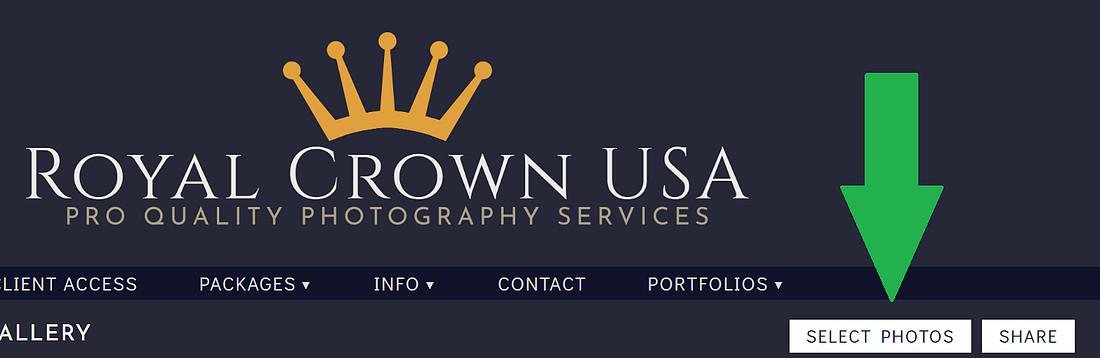
2. Select photos using the "SELECT PHOTOS" button on the top right side of the gallery (See pictures below).
|
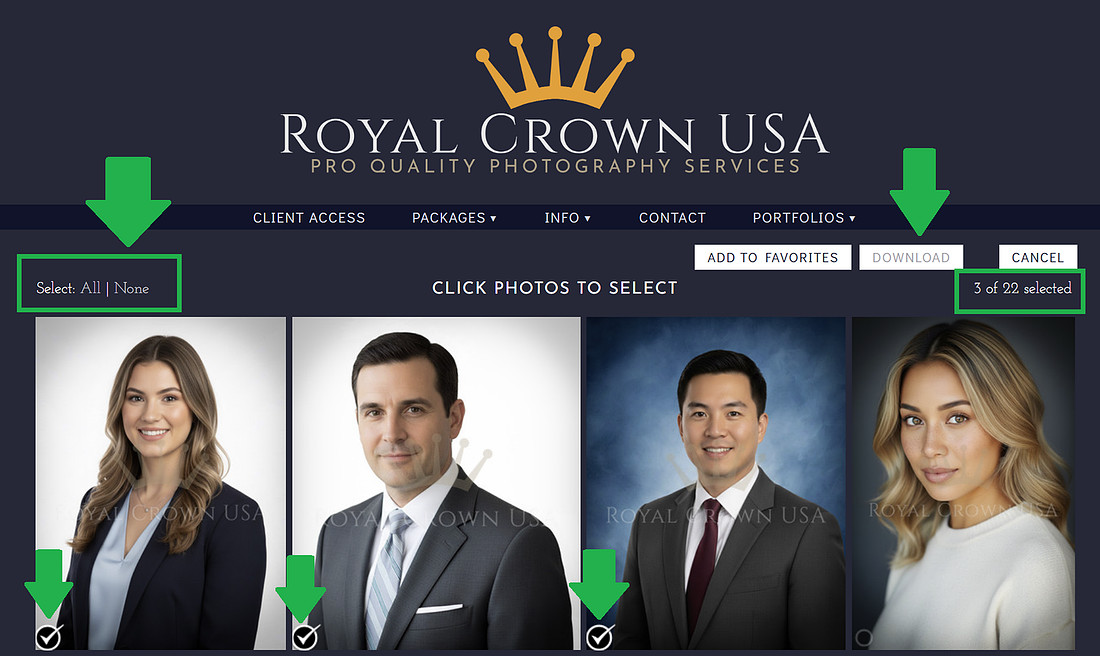
3. You can select one or few photos one by one, or by clicking "All" button on the top left side of the gallery. Select "None" if you want to remove all selection. Click "CANCEL" button on the top right side if you want to quit the selection mode.
When photos are selected, it will have the checkmark sign on the bottom left corner of each selected photo as indicated in the picture. The number of selected photos are displayed dynamically during selection and will be shown below the "DOWNLOAD" button. Please note that selecting All or large amount of photos may take time. Any selection bigger than one photo will be compressed into one Zip file. Big Zip file will be divided into series of Zip file.
|
4. Once you are done with the selection, click the DOWNLOAD button as shown on the top right side of the gallery.
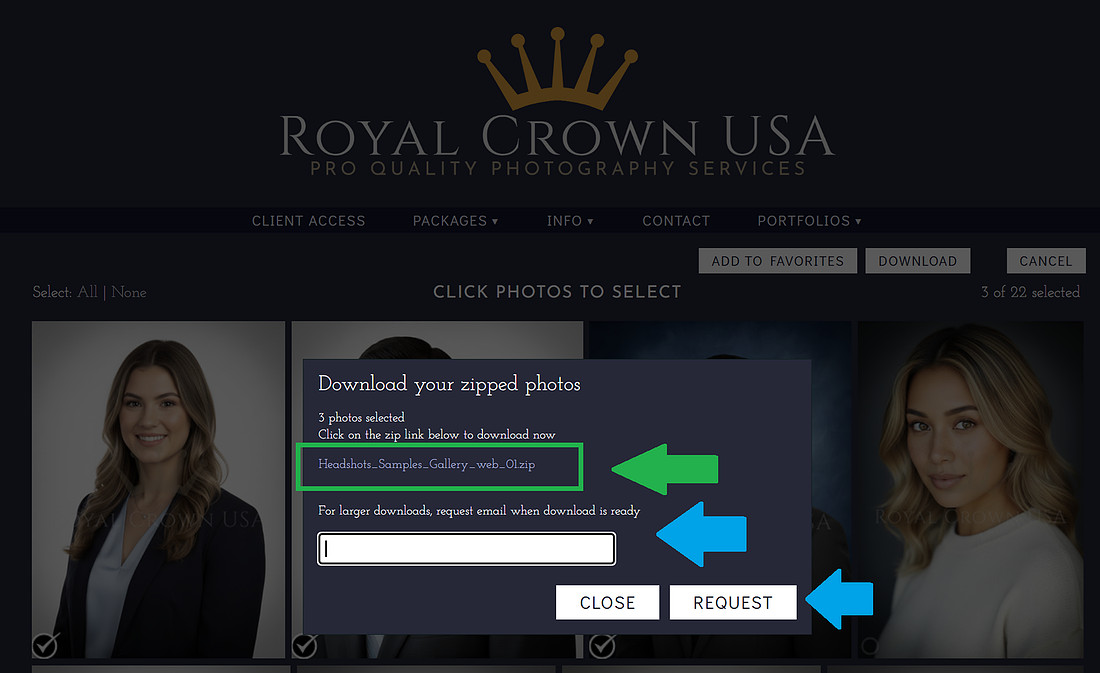
5. It will bring up a small dialog in the center front of the gallery. For small download, you can click the zip link that has the zip file name at the center of the dialog to tell your internet browser to start the download process. If you want to be notified via email when large download is ready, you can enter the email address and click REQUEST button. Upon clicking the zip link, your internet browser will ask you to confirm the download. The download file will be stored at your browser's Download folder.
|
If you still have troubles or have any questions regarding this, please contact us and describe your questions/problems and we will help you as soon as possible. Thank you for using our services!

WOODINVILLE, WA 98072
United States
|
Royal Crown Photography has been providing pro-quality photo services to the Greater Seattle area, Pacific Northwest (PNW) region as well as destination locations since 2009. We take pride in making sure great care and details on capturing your great moments on your big days. We can customize our package to meet your special needs. Contact us today to reserve your spot by booking early!
|